
If you're experiencing issues with seeing a Facebook Page in your integration workflow that you expect to see or noticing a post failure, don't worry! This guide will walk you through the steps to troubleshoot common issues with integrating Facebook.
Click on a link below to quickly jump to a section in this guide:
- Not Seeing Facebook Page
- Managing Facebook Pages through Business Portfolios
- Post Failing with a "Network Error"
Not Seeing Facebook Page in Integration Workflow
-
Access Integration Workflow:
-
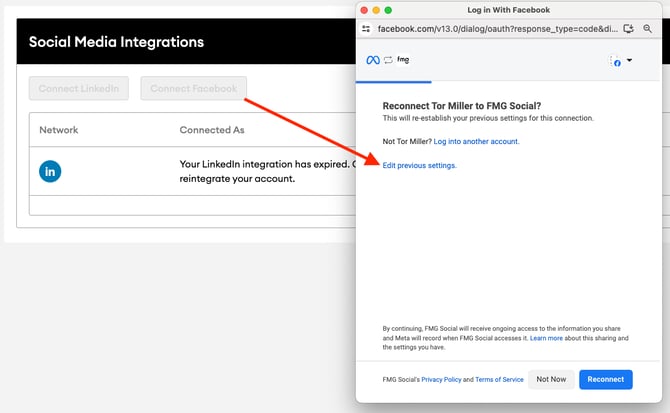
After you click on Connect Facebook, on the very first screen of the integration workflow, instead of clicking "Reconnect," click Edit previous settings.
-
-
Select Business Permissions:
-
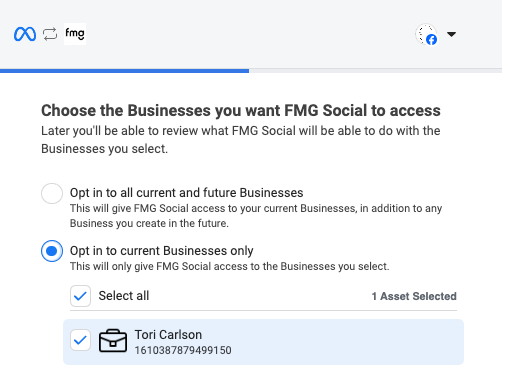
Depending on your needs, you have two options:
-
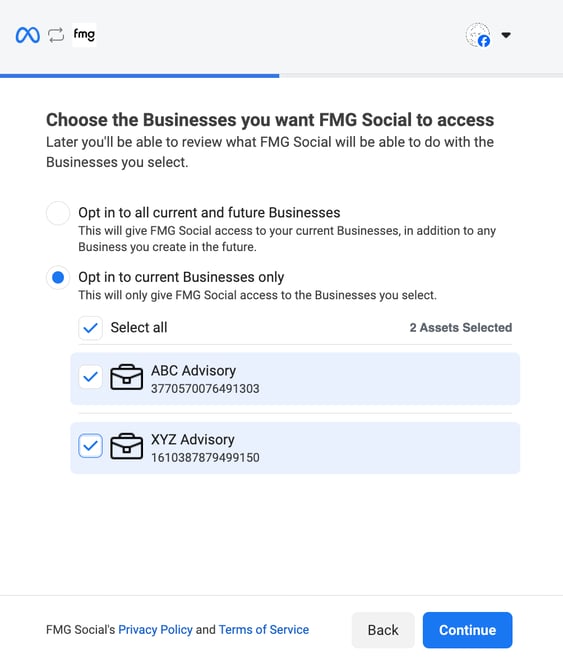
Specific Businesses: If you manage other Facebook Pages that you don't plan on ever connecting to Agency Revolution, select Opt in to current Businesses only. Then, you can choose the specific Businesses to which you want to grant Agency Revolution permissions.
-
Opt-in to All Businesses: If you manage multiple Agency Revolution accounts, selecting Opt in to all current and future Businesses will help ensure that you can integrate with Pages associated with other Business Portfolios on other Agency Revolution accounts.
-
Ensure Appropriate Business Portfolio Selection: In this step, it's crucial to select the appropriate Business Portfolio. For more details, refer to the section on Managing Facebook Pages through Business Portfolios.
-
-
Check and Select Missing Pages:
-
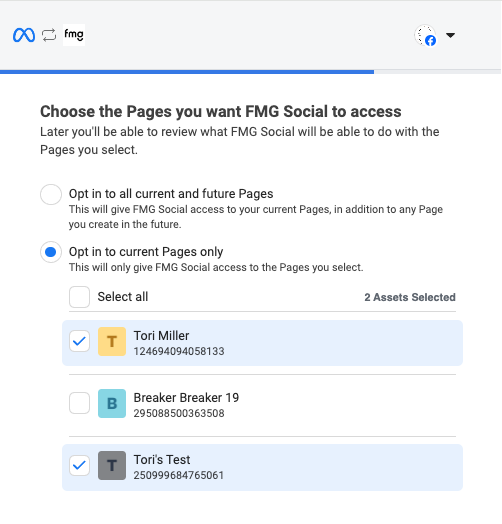
On the next screen, you should see the Page(s) that were missing from the integration workflow previously. These Pages are likely deselected here.
-
Select/enable the missing Page(s) and then click Continue.
-
- Finalize Integration:
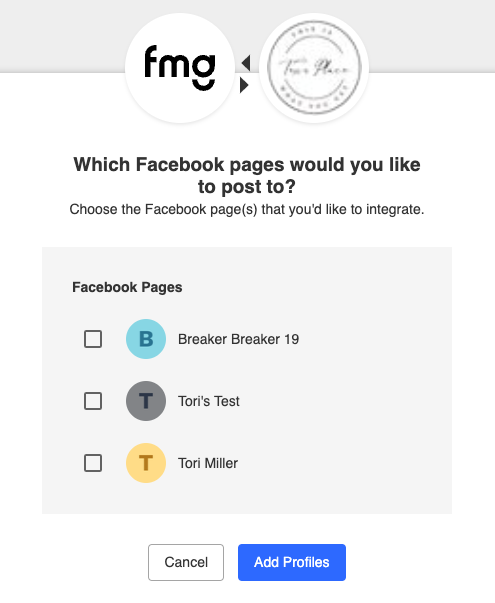
- After selecting the missing Page(s) and clicking through the integration workflow, you should now see the expected Page(s) available to select. Click Add Profiles to complete the integration.
- After selecting the missing Page(s) and clicking through the integration workflow, you should now see the expected Page(s) available to select. Click Add Profiles to complete the integration.
Managing Facebook Pages through Business Portfolios
Your Facebook Pages may or may not be associated with Business Portfolios. Here's an example:
-
There are three visible pages in the screenshot below (these are labeled with Facebook Page under the account name):
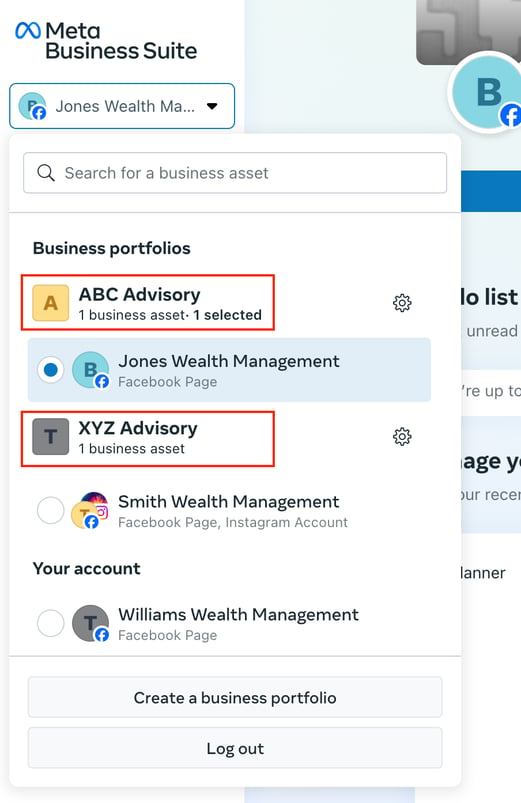
- In the screenshot above, you'll notice that the “Jones Wealth Management” and “Smith Wealth Management” Facebook Pages are associated with Business Portfolios.
The "Williams Wealth Management" page is not associated with a Business Portfolio. -
To integrate with either the “Jones Wealth Management” or “Smith Wealth Management” Pages, the appropriate Business Portfolio must be selected in the AR integration workflow:
For more information, visit the following related Facebook help articles:
- Differences between Page access and business portfolio access
- About business portfolios in Meta Business Suite
Post Failing with a "Network Error"
If you're seeing a "Network Error" when trying to post to Facebook through Agency Revolution, it indicates that Facebook is blocking the post on their end. This is not an issue with your Agency Revolution account or Facebook integration.
There are a few reasons Facebook may block a post from a third-party platform, but one of the most common is an identity verification requirement. Facebook periodically asks account holders to confirm their identity, and until that's completed, posts sent through platforms like Agency Revolution will not go through.
The steps below walk you through how to complete identity verification in Facebook.
Important: The personal Facebook account that owns or manages the business Page must complete the verification.
Option 1: Complete Verification in the Facebook Mobile App
This is the recommended option.
- Open the Facebook app on your phone.
- Log in to the personal Facebook account that manages your business page.
- Follow any identity verification prompts that appear.
Option 2: Complete Verification in a Desktop Browser
If you prefer to use your computer:
- Log out of Facebook on your browser completely.
- Log back in.
- Follow any identity verification prompts that appear.
Not being prompted by Facebook to complete identity confirmation?
Try these steps to manually start the identity verification process in Facebook:
On the Facebook mobile app:
- Open the Facebook app and tap your profile picture
- Tap the three-line menu (☰) in the top left of your profile page
- Tap Settings & Privacy, then Settings
- Then tap Accounts Center
- Tap Your Information and Permissions
- Tap Identity Confirmation at the bottom of the list
- Follow the on-screen prompts to complete verification
Note: Navigation may vary slightly depending on your device or app version.
On desktop:
- Log in to Facebook at facebook.com
- Click your profile picture in the top right corner
- Click Settings & Privacy, then Settings
- Click Accounts Center
- Click Your Information and Permissions
- Click Identity Confirmation
- Follow the on-screen prompts to complete verification
Note: You can also try visiting facebook.com/id/hub directly on your desktop.
After Verification Is Complete
Once your identity has been confirmed in Facebook:
- Return to Agency Revolution and retry your post
- Your Facebook integration should continue working as expected
- You do not need to reconnect your Facebook integration
- Previously scheduled posts do not need to be rescheduled