
After you launch a campaign, there are times you may want to make a change to either the content of the email, or the configuration of the campaign itself. To find your launched campaigns, simply go to the lefthand sidebar within your Agency Revolution workspace and click on "Marketing."
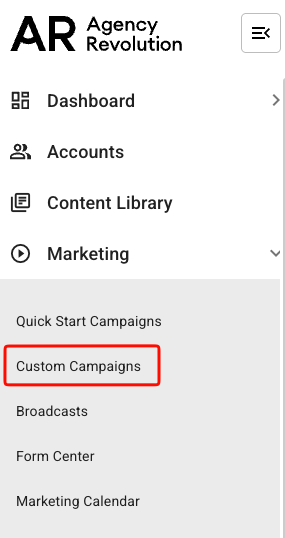
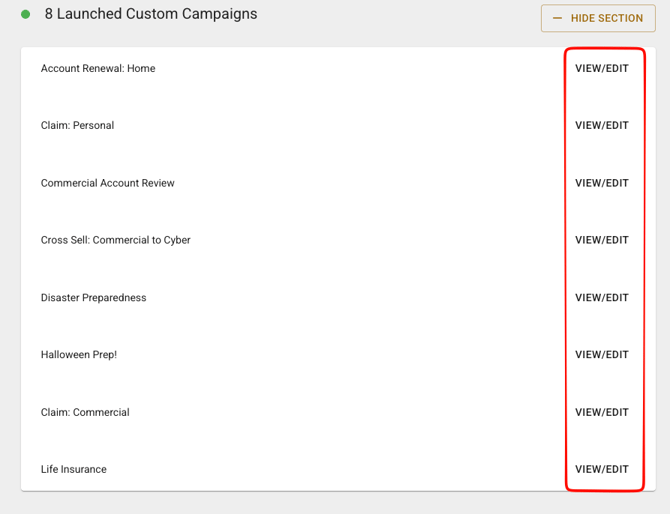
Select "Custom Campaigns" and look under the "Launched Custom Campaigns" heading to locate the campaign you wish to change. Click on the "View/Edit" button to the right of the campaign you'd like to edit.
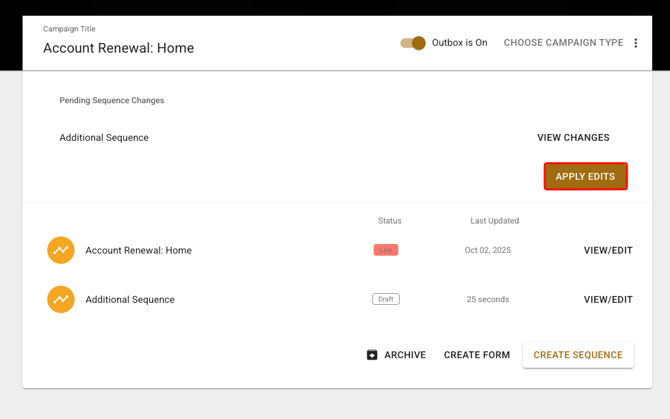
Once within your campaign, go ahead and make any necessary edits you'd like, from copy edits to configuration changes. Once you're happy with your edits, you'll need to both apply the edits and relaunch the campaign for everything to update. Meaning, whenever you make a change to the emails or steps in a sequence you must relaunch your campaign. Changes are NOT applied to your live campaign until this is done.
💡 Important Note: At this time, there is no version history within Fuse's email builder, meaning you will not be able to track email content changes from previous saved campaign versions.
In the below example, we've added an additional sequence to our "Account Renewal: Home" campaign. We'll click "Apply Edits" button to move to the next step of updating our live Fuse campaign.
Next, we'll be taken the launch screen. Here, we're able to review our changes, and make some decisions about which sequences will be active ("live") once the campaign is relaunched.
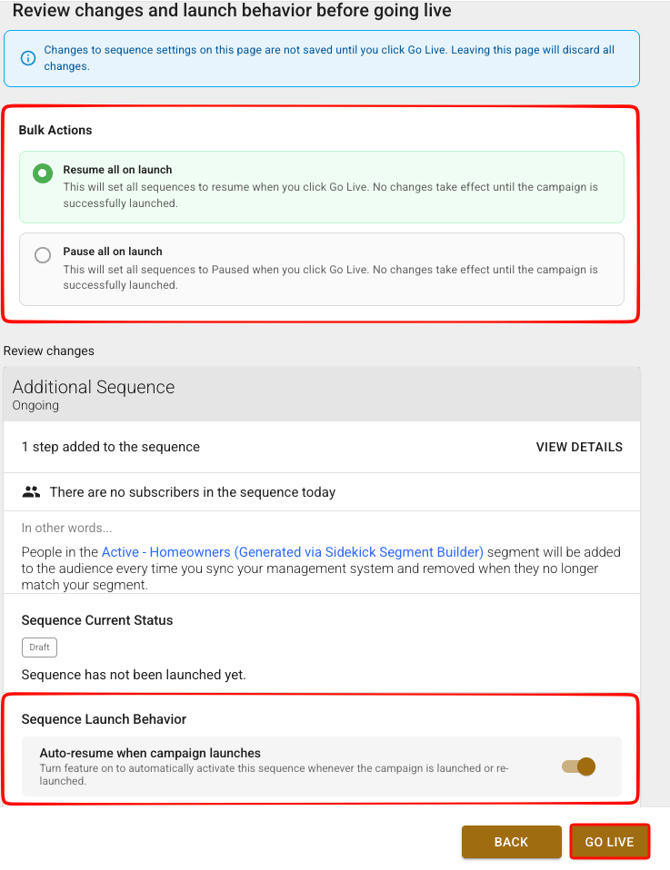 Here, we'll see the "Bulk Actions" box with "Resume all as active" selected. This means that all sequences in a campaign will be active when we click "Go Live." Similarly, "Pause all as paused," will set all sequences to paused, but the campaign will be live.
In this example, we'd like all your sequences to be active upon launch, we'll simply click "Go Live" since the "Resume all as active" bulk action is already selected. If we wanted to toggle ON or OFF the "Sequence Launch Behavior," before going live, that would mean the campaign would be live, but only toggled ON sequences would be active. We can always change this later with another edit!
A sequence does not have to be active ("live") for the edits to said sequence to apply! When you click "Apply Edits," all your changes save, regardless of the status of your sequence upon campaign relaunch.
Clicking "Go Live" at the bottom right of the screen will relaunch your campaign. To learn more about how your campaign timing and segments are impacted by pausing or resuming campaigns, check out this Help Center article.