
In this article, we will cover how to set up the Commercial Account Review Campaign. within Fuse.
Setting Up the Commercial Account Review Campaign
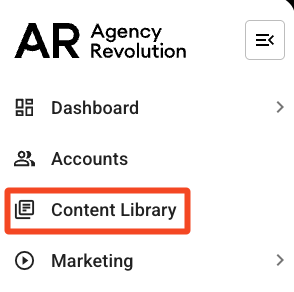
To locate the campaign, first, click "Content Library" in the left navigation bar.
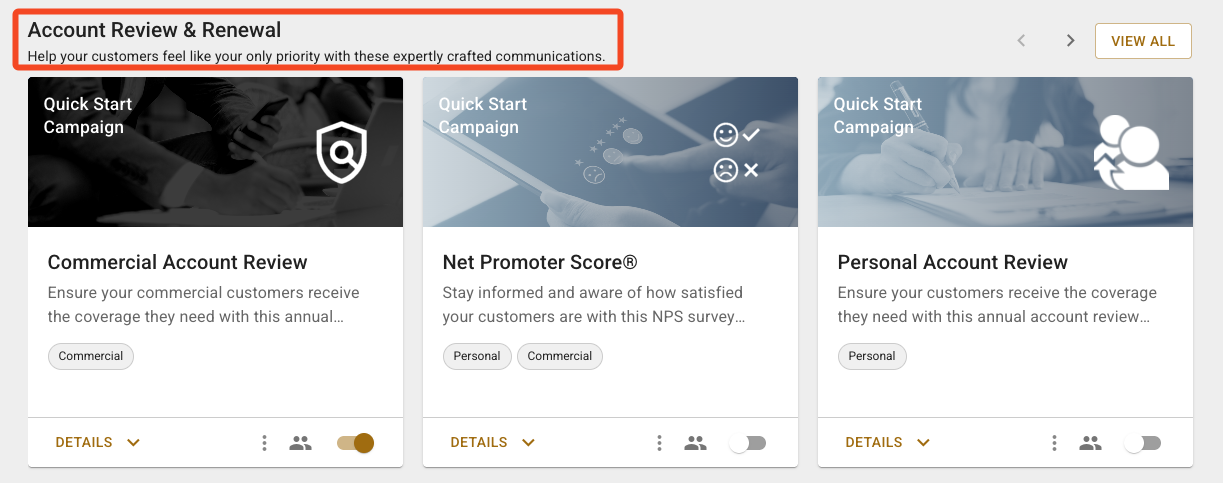
Scroll to the "Account Review & Renewal" section, locate the Commercial Account Review campaign. There are two versions of this campaign.
-
Quick Start Campaign: This message sequence includes a policy checkup and policy review email.
-
Custom Campaign: This is a customizable version of the Quick Start campaign.
Note: If you choose the Quick Start Campaign option, you will not have the ability to edit it. You can toggle on this campaign and use our default content.
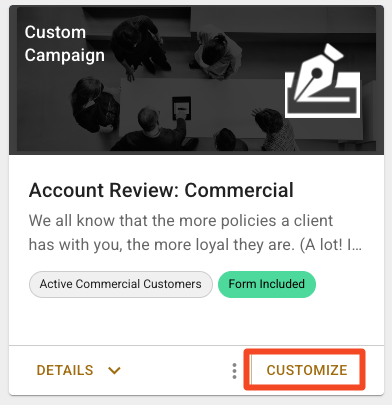
We will focus on setting up the custom version of this campaign. After you locate the Custom Campaign - Account Review: Commercial in the Content Library, select "Customize." This will add the campaign to your Custom Campaign Library. Click "View/Edit" on the right side of your screen to start customizing the campaign.
Determine Your Audience
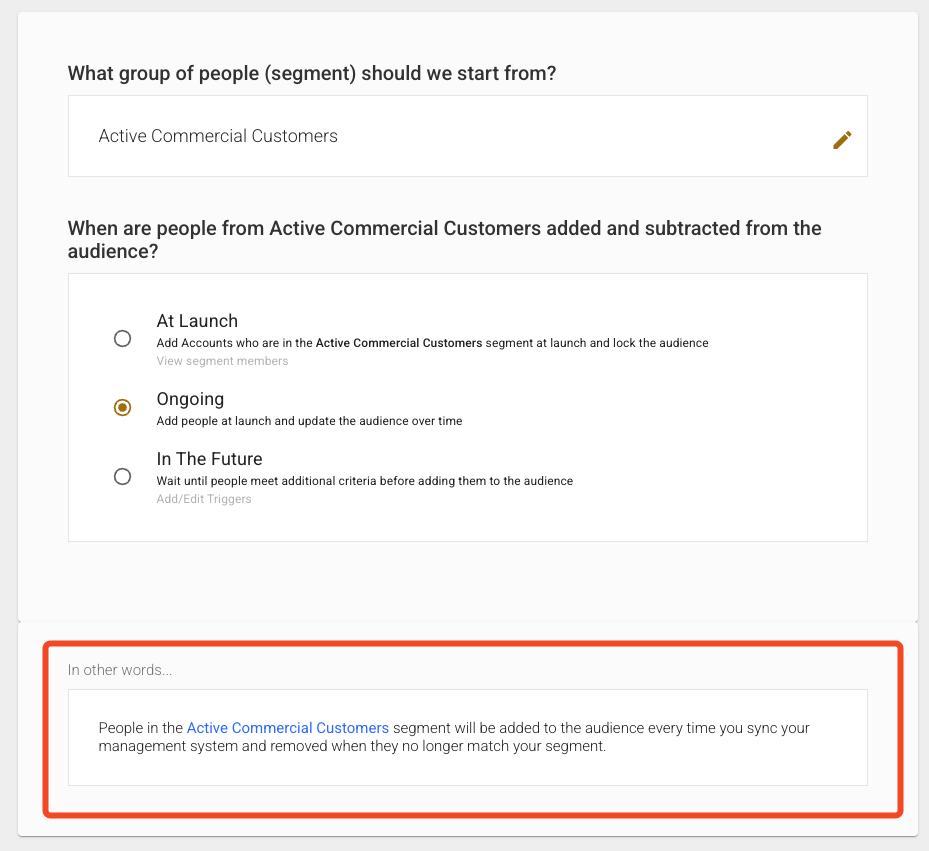
Next, we will confirm who gets the messages and when. The Commercial Account Review Campaign targets Active Commercial Customers. To review the segment and confirm who is being targeted, click on the blue "Active Commercial Customers" text in the "In other words" section.
This will open a new window with the Active Commercial Customers Segment that was installed with the campaign. Here, you can confirm that the segment is targeting "Active Accounts" with a "Commercial" client type.
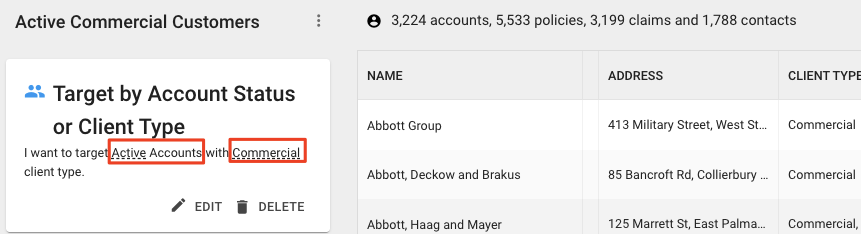
After confirming the segment for your group, you can close the window to return to the Commercial Account Review Sequence page.
When are people from Active Commercial Customers added and subtracted from the audience?
Next up, we will confirm when people will be added or removed from the audience. The campaign defaults to add audience members on an "Ongoing" basis. This means that each year a client is going to receive this campaign and if they ever become inactive they are going to be removed from this campaign. Also, if a new client comes in, they will be added to the campaign right away.
People in the Active Commercial Customers segment will be added to the audience every time you sync your management system and removed when they no longer match your segment.
Steps
The "Steps" section will show you an overview of the campaign.

This campaign uses an Account Date Sequence. The default option here is "Account > Customer Since." You can keep the default option here, or if you'd like to change this setting click on this section.
Click on "Account > Customer Since" to change this setting:
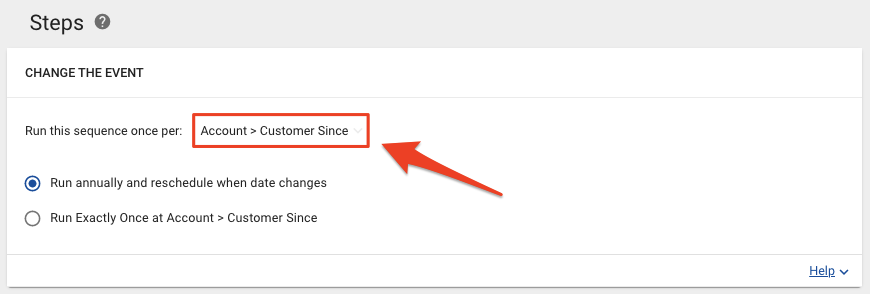
Here, you will be able to select a date. In this example, we will choose "Policy > Expiration Date":
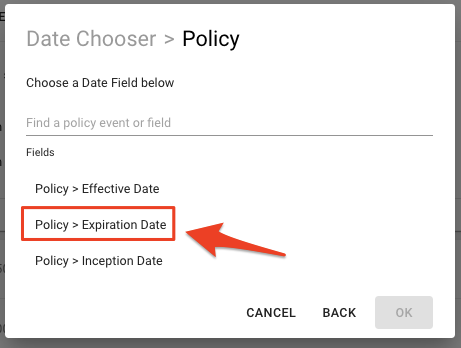
You can choose to either "Filter only to Active policies" or "Target both Active and Inactive policies." Click "OK" to continue.
Edit the Event's Relative Days
If you want to make changes to the event's relative days, you can click on the days listed on the far right of each step. In this example, since we have changed the Account Date Sequence to "Policies > Expiration Date," we'll want to make sure the days listed here are before the policy expiration date:
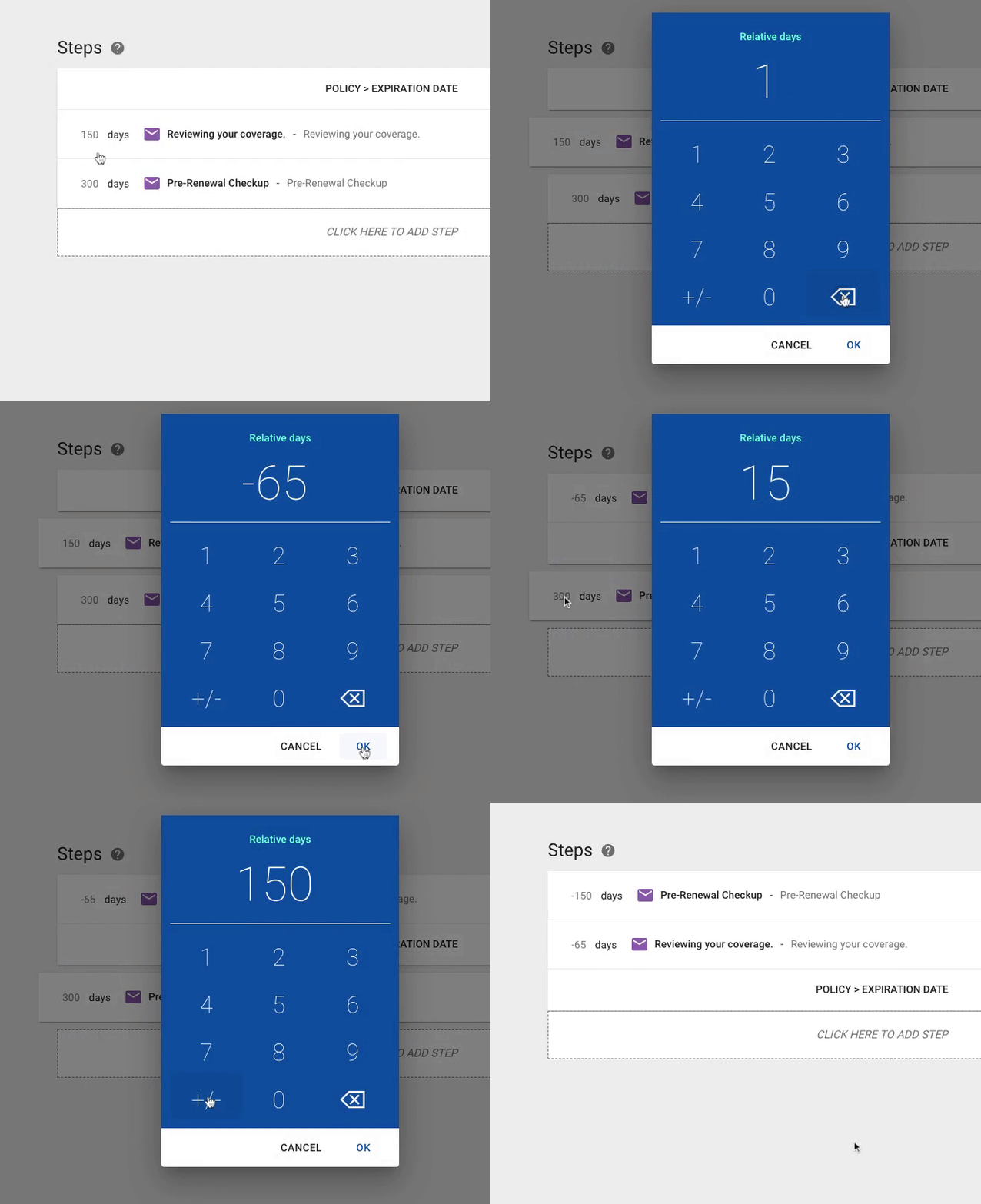
Great! Now that you've reviewed the campaign and made any changes you'd like to, it's time to launch the campaign!
Launching Your Campaign
When you are ready to launch the campaign, set it live by clicking "Launch," on the bottom right corner. Review your changes, and click "Go Live."
Great job, you've set up the Commercial Welcome Kit Campaign! If you ever need to edit or delete this campaign in the future, you can locate the campaign by clicking on the "Marketing" dropdown and selecting "Custom Campaigns" in your left navigation bar.