
Can I adjust the forms or add a new form to my Forge website?
The forms that come with your Forge website are intended to be simple lead generation and service forms. Our experience shows that prospects and existing clients have a higher completion rate when the form is less than 10 fields in total. By keeping the forms on your website concise and focused, your agency is already ahead of the curve, and getting the most out of the Forge platform.
However, we understand that you may have a need to tweak an existing form or add a completely new form to your website as your agency's needs change.
Depending on your Forge subscription, its support tier, and the type of request, we can make these updates as part of your Forge plan at no additional charge. If complex or custom forms are requested, we may need to scope it as a small, one-time project regardless of subscription level.
💡Important Note: The forms built into Forge are not designed to capture personal health (medical records, treatment, diagnosis, and related information) or financial information (credit card and bank account details). If you want to collect this data, you’ll need to find an alternative form solution and reach out to our team.
What happens if I just need a tweak to an existing Forge form?
If you’d like to make a few tweaks to an existing form on your website by adding some simple fields without any conditional logic, just send our team the few fields you'd like added into the form.
💡Important Note: Any updates we make to your Forge website's quote form will exist across the entire site, including all of the insurance coverage pages.
If the changes you’d like to make to the form are more substantial, we’ll need to review your request in more detail to determine the best route and potentially scope the work as a small, one-time project.
Substantial changes include:
-
Adding several new fields to a form.
-
Including conditional logic.
-
Unique form formatting.
- Coverage-page specific form edits.
What if I want to add a brand new Forge form to my website?
If you’d like to add a new form to your website that asks for basic information and does not have any conditional logic or unique formatting, please gather up those details into an editable document and send them to our team. We can make this addition for you as part of your Forge subscription.
If you’d like to add a more complex, multi-page form to your website we’ll need to review your request in more detail to determine the best route and potentially scope the work as a small, one-time project.
💡Important Note: Longer lead-gen and support forms are less likely to be filled out and go against our Forge platform best practices.
What if I want to replace the Forge forms on my website with a third-party integration?
If you’d like to replace the built-in forms on your website with another solution, we’ll need to review your request in more detail to determine the best route and potentially scope the work as a small, one-time project.
If you're a Fuse client, you can also replace your Forge forms with native Fuse forms. You can learn more about the power of Fuse forms in this Help Center article.
What if I want to remove all of the forms on my Forge website?
We’re not able to fully remove all forms on your website. Forge is a platform built on a series of best-in-class frameworks and foundational code. However, there are certain limitations in order to help preserve the integrity of the platform and your website. Completely removing the built-in forms would negatively impact the page structure and layout of your website. However, some forms, such as in the Client Service Center, are able to be removed by request.
How can I export my Forge website form entries?
If you want to export entries from your built-in Forge website forms, simply navigate to the Website menu in the sidebar of your workspace dashboard. From there, select "Engagement Tools," and navigate to the "Website Forms" tab at the top of your screen. You'll be able to export form entries from this main page, provided you are a Forge Standard User. You can learn more about Forge user roles in this Help Center article.
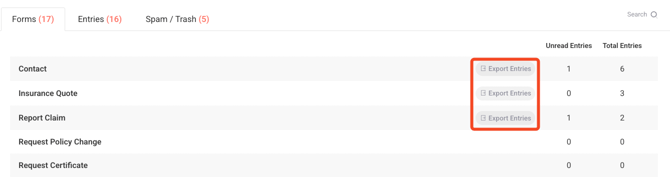
Search for and select the form with the entires you'd like to export. Click on the "Export Entries" pill on that form's row within the Agency Revolution workspace. You'll then be able to select which fields you want exported. If you're not sure, we recommend clicking "Select All!"
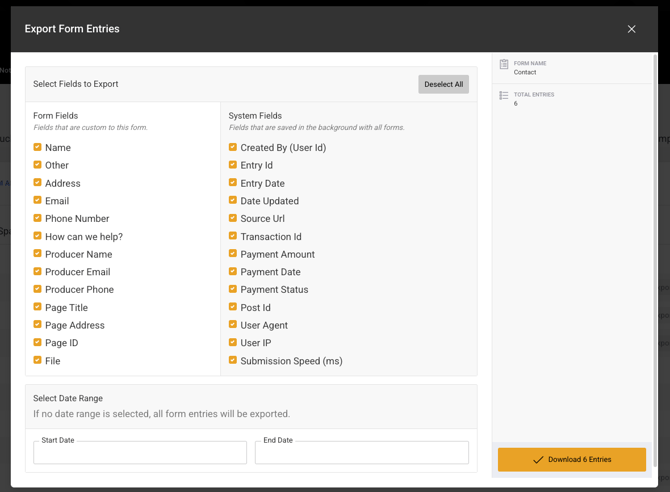
Click "Download Entries" when you're ready. A CSV file will be downloaded to your computer's download folder. Repeat this process for any other forms for which you'd like to export entires.