
Business Texting is a powerful tool for meaningful client communication. The two-way texting platform allows you to attach files to send to your clients in your messaging thread.
These files are hosted on a secure link with a root URL of: share.insurance-files.com. For security purposes, this link always expires 5 days after your message is sent, or after the link is clicked five times within that same timeframe. You're able to re-upload and resend your files as needed should the secure link hosting your files expire.
How do I attach a file in my texting conversation?
Access Business Texting by navigating to the Texting icon on the left sidebar of your Agency Revolution workspace. Then, find the specific client text thread where you'd like to send an attachment.
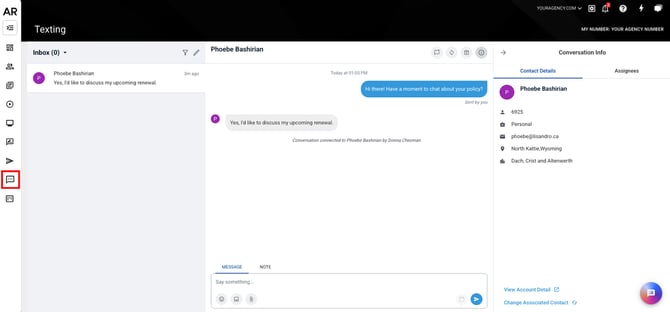
Beneath the box where you can type a message to your client, you'll see a picture icon and to the right of it, a paperclip icon. Use the picture icon to search through files on your computer to attach images. Click on the paperclip icon to search through files on your computer and attach important documents like prepared quotes for your client.
Our Business Texting product allows you to attach PNG and JPG image files, and most common file types: PDF, TXT, CSV, and XLSX. Remember: always be considerate of how you use Business Texting. The goal is to build relationships with clients and provide valuable communications.