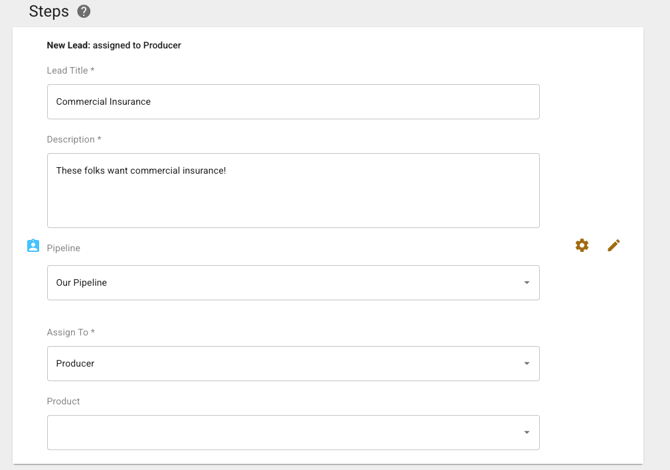
The Pipeline tool is built into Fuse to help you manage leads and streamline your sales process. There are a few key ways you can create leads using Fuse and through launching Fuse campaigns with lead steps.
Create Leads from a Fuse Segment
Fuse allows you to turn a segment in the system into a batch of leads sent to a specific Pipeline of your choice. To do this, let's start by navigating to the "Accounts" option on the left menu. Click "Accounts" to be brought to your list.
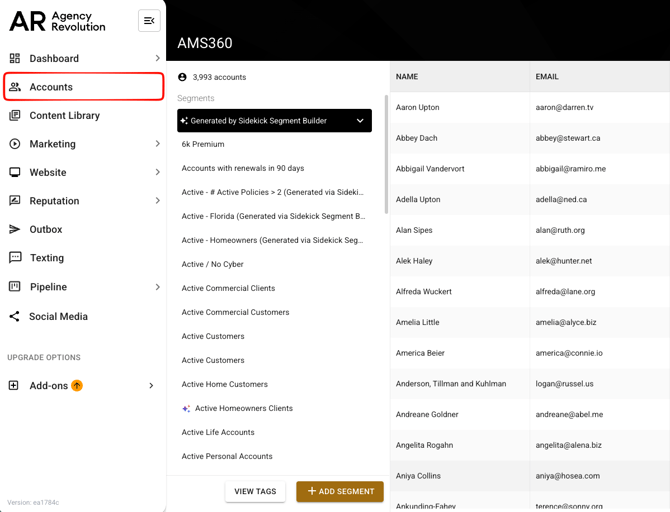
Once there, select an existing segment or create a new segment that you'd like to turn into leads. If you want to learn more about creating segments in Fuse, check out this Help Center article. The segment will open in a new screen, showing you the rules on the left and the matching customer accounts on the right.
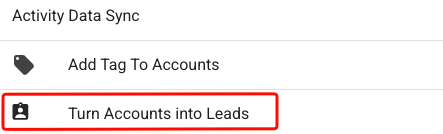
Once everything looks good and you're seeing the correct people in your segment, click on the three-dot menu in the top right corner of the screen. Select "Turn Accounts Into Leads."
A smaller screen will pop up, asking for a few key pieces of information: Lead Title, Description, who the leads should be assigned to, and which of your existing pipelines should these leads be sent to. These fields are required to turn your segment into leads.
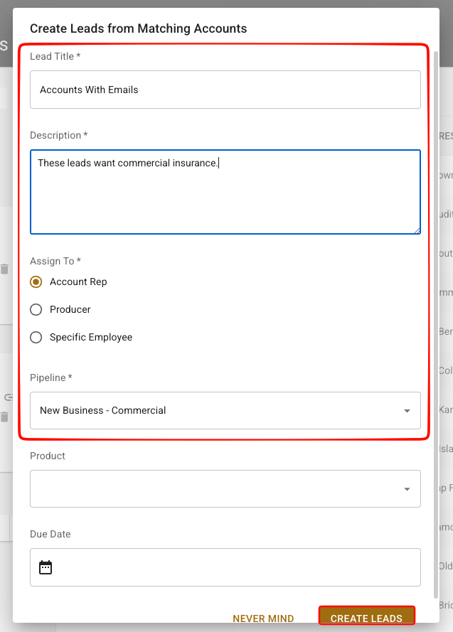
You can optionally add what product these leads want, or add them on a lead-by-lead basis later. It's a best practice to give your leads a due date, too! Once you've filled out the information on this screen, click "Create Leads" in the bottom corner. Depending on how many leads were created, this could take a few minutes.
Create a Lead from a Fuse Form Completion
If you have a launched Fuse campaign running with a form included in the campaign, each response will be turned into a pipeline lead automatically. You can configure which pipeline your form will funnel responses into by going to the form settings.
There's two easy ways to get to your Fuse form settings: the Fuse Form Center, or through individual campaigns. The Form Center is the quickest way to get to your form settings, so we'll start there.
Navigate to the left sidebar and click on "Marketing," then select "Form Center" from the list of options. Once in the Form Center, you can use the search bar to find the specific form you want to edit.
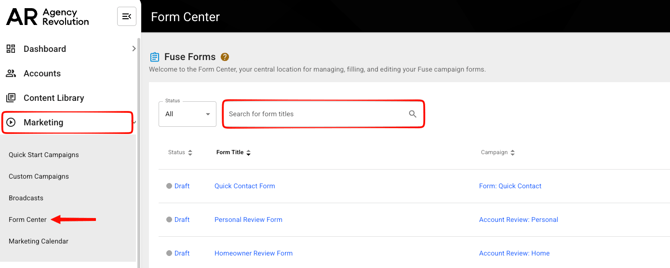
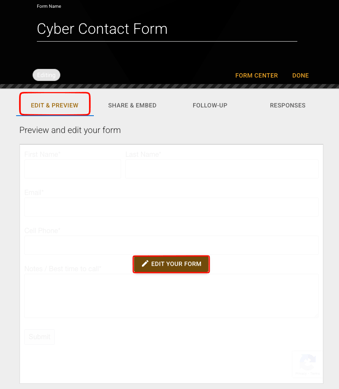
Once you find the form you want to edit, click the three-dot menu under the "Actions" column on the right side of your screen. Select "Manage Form." On the "Edit and Preview" tab, hover over your form and the "Edit Your Form" button will appear. Click it to start editing your form.
On the top left of your screen, click on the "Settings Tab" and find the "Pipeline Options" section. Here, you'll be able to select which of your existing Fuse pipelines you'll want these form submissions to filter into, and at what stage in the pipeline. We recommend always checking these settings before launching a campaign with a form.
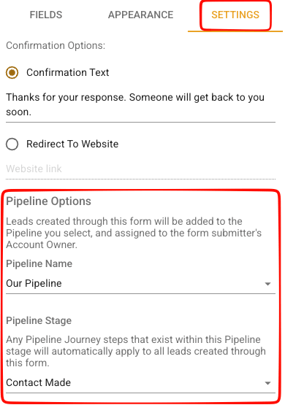
💡 Important Note: You can select "NONE" under "Pipeline Name" if you don't want the form fills to go into a pipeline.
You can also navigate to your launched campaigns in the left sidebar by clicking "Marketing" and selecting "Custom Campaigns" from the list of options. Find the campaign with the form you'd like to edit and click on it. Within that campaign, locate the form and click "View/Edit" on the right side of the form. Follow the same steps to get to the settings and configure your form as needed.
Using a Fuse Sequence Step for New Leads
While building your Fuse campaigns, you're able to add a "New Lead" step in your Fuse sequences. To do this, scroll down to the "Steps" portion of any sequence you're editing within Fuse. Click the "Add New Step" box, and select the "New Lead" step.
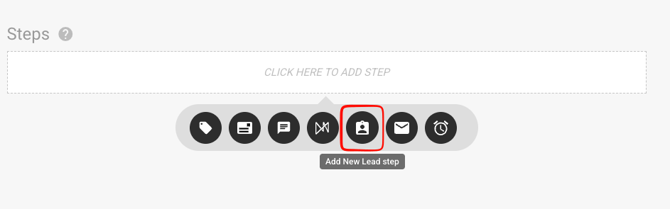
Once the step is added, click on the pencil icon next to that step to edit it. You'll be required to fill out the "Lead Title," "Description," and "Assign To" fields. Within the "Assign To" options, you can choose the Account Rep, Producer, or a specific employee within your Fuse account.