
For clients on the Magenta version of Forge, the website platform includes AEO-friendly FAQs that help bolster your ranking in AI search engines. These FAQs are placed on your coverage pages and come in two varieties: Quick Start FAQs available on all Forge subscription levels and written by our professional content team, and Custom FAQs that Forge Premium and Legacy clients are able to create on their own.
Each Forge Magenta website also comes with an Answer Hub page, which stores all included FAQs in one place. This page is meant to tell AI search engines that your website has quality content.
Each FAQ placed on a coverage page–or the Answer Hub page–also adds FAQ schema to the page, which is a handy bit of code that lets AI search engines know the content on the page is valuable and worth ranking.
What is AEO?
At its very core, Search Engine Optimization (SEO) and Answer Engine Optimization (AEO) are not all that different: AEO, like SEO, rewards agencies that publish great content, and Forge is the perfect vehicle for said content.
When people type questions into Google, they’re now shown an AI summary before any traditional search results. It’s important for our clients to show up in these summaries, or in replies from AI tools.
AEO is an additional strategy that complements traditional SEO. While both focus on content creation as a core aspect, the AEO approach uses more conversational language and directly addresses and answers common questions that can be pulled up in an AI search result. That’s exactly where independent agencies can stand out: Every client question, voicemail, email, and renewal conversation can be turned into great insurance content on a Forge website.
What is the benefit of FAQ schema?
FAQ schema is the bit of backend code that tells AI-powered search engines the content within said page is great for answering common questions. It’s one of the technical backbones of AEO. This schema has a big impact on their AEO strategy.
Answer engines read these labels and understand the content itself better, making it more likely to show up in AI summaries you’ll see on common engines like Google.
What do Forge FAQs look like on my website?
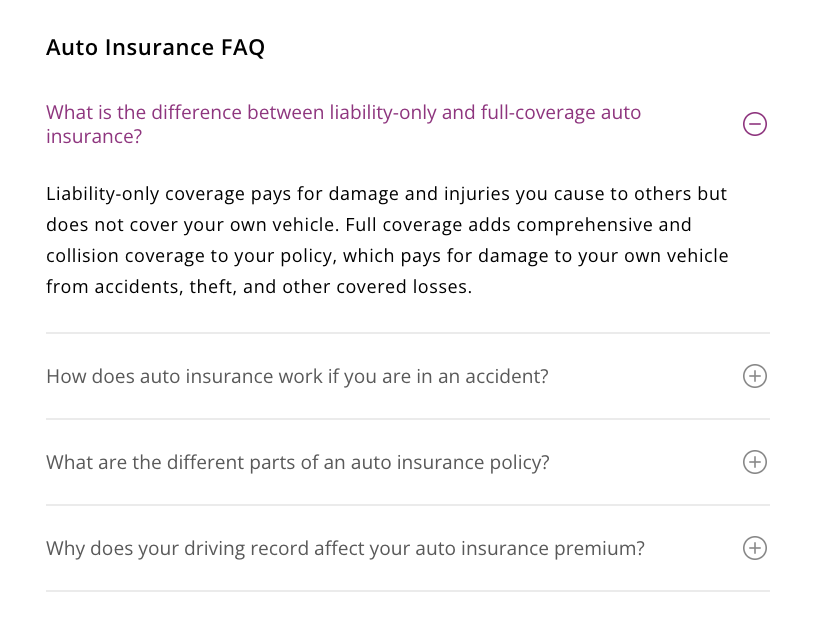
Forge FAQs will appear at the bottom of your coverage pages, just above the quote form, in the order they appear within the Agency Revolution workspace, similar to sorting and ordering team members. These FAQs will follow the color styling of your website.
How do I access Forge FAQs?
The FAQ management page in the Agency Revolution workspace can be found under the “Website” tab in the left sidebar. From the options, select “Content,” then tab over to the “FAQs” tab at the top of your screen.
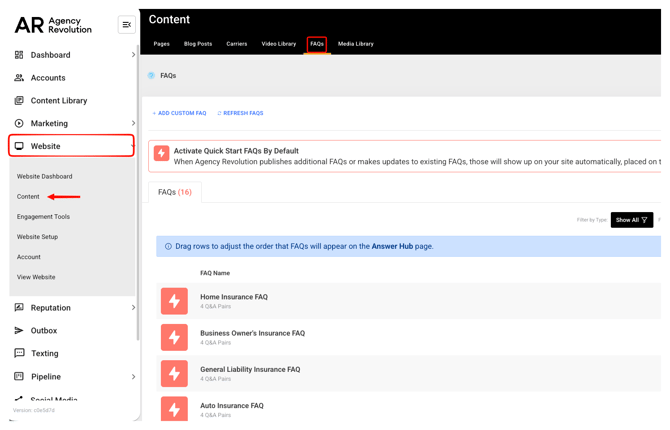
Forge Essential clients will only see Quick Start FAQs on this page, denoted by the thunderbolt icon next to the FAQ. Their subscription only includes Quick Start FAQs, published by our professional content team. If you are a Forge Premium or Forge Legacy subscriber, you’ll have the ability to create and manage Custom FAQs, as denoted by a gear icon next to the FAQ.
What do the different labels on the FAQ page mean?
There are a number of different labels shown on the FAQ page to the right of each FAQ row: “FAQ Type,” “Status,” “Pages,” and “Answer Hub.”
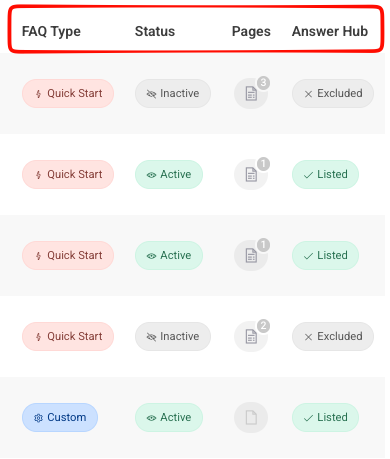
FAQ Type refers to if the FAQ is a Quick Start FAQ or a Custom FAQ.
Status has two options: “Active” or “Inactive.” An “Active” FAQ is enabled to be visible on your website as long as there is at least one page or the Answer Hub for it to appear. An “Inactive” FAQ is not visible on your website, even if it has pages attached to it.
Pages refers to the number of coverage pages where your FAQ appears. You can hover over the “Pages” icon next to each FAQ to see a list of all the attached pages. An FAQ can be attached to zero pages, and still be listed on the Answer Hub.
Answer Hub has two options: “Listed” and “Excluded.” A “Listed” FAQ means it will appear on the Answer Hub if the FAQ is “Active.” An “Excluded” FAQ will not appear on the Answer Hub regardless of if the FAQ is “Active.”
How do Quick Start FAQs work?
Quick Start FAQs are published in batches by our professional content team. Each Quick Start FAQ is automatically placed on relevant coverage pages, as decided by the content team. Forge Essentials and Forge Premium and Legacy clients have the ability to configure which coverage pages these Quick Start FAQs appear on–pages can be added or removed as desired.
To configure the FAQ visibility of a Quick Start FAQ, simply click on the FAQ you wish to manage. A pop-up screen will appear with some key information about the Quick start FAQ. Within this pop-up, you’ll first see the “FAQ Visibility” box. Here, there are two toggles: one for activating the FAQ, and one for including it on the Answer Hub page.
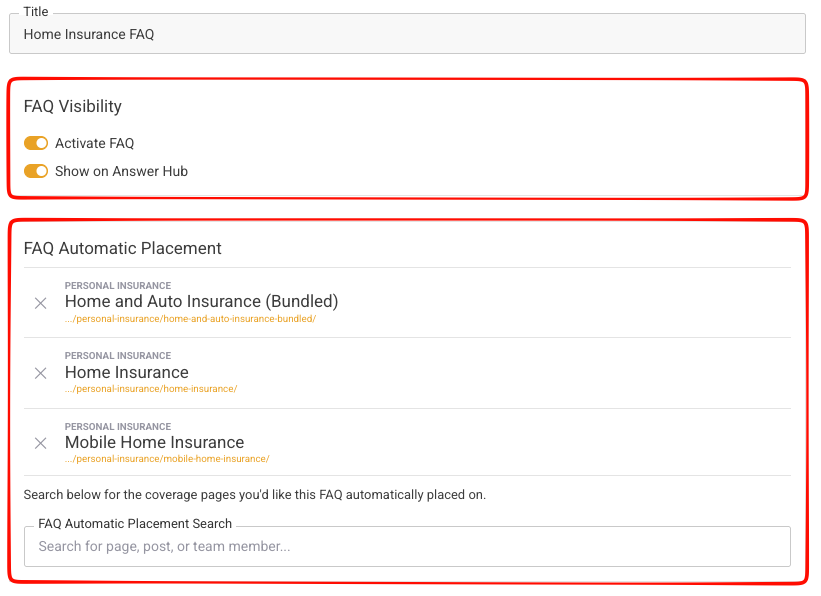
Toggling ON and activating an FAQ means that it will be visible on your website as long as there is a coverage page or Answer Hub page for it to appear. Toggling ON the “Show on Answer Hub” option means the FAQ will be visible on the Answer Hub page.
💡 Important Note: An FAQ must be activated to appear on your website. We recommend having every FAQ visible on the Answer Hub page for best results bolstering AEO.
Within the “FAQ Automatic Placement” box, you’re able to “X” out any coverage pages should you not want the FAQ enabled on that page. You can also search for and add additional coverage pages for the Quick Start FAQ to appear on–it’s a best practice to ensure the coverage pages are related to the FAQ content in some way.
If you only want the FAQ to appear on the Answer Hub page, but not on any coverage pages, simply click the “X” next to each coverage page and ensure the “Show on Answer Hub” toggle is ON.
At the top of the main FAQs page, you’ll see a toggle to activate Quick Start FAQs by default. Toggling ON this feature is highly recommended: it means every time our professional content team publishes a new Quick Start FAQ that relates to a coverage page on your website, you automatically get the FAQ added to that page.

If at any point you choose to toggle this OFF, and later toggle it back ON, you'll be asked if you want to bulk-activate all of the existing Quick Start FAQs relevant to your website. If you say "Yes," all of the Quick Start FAQs will be "Active" and will appear on the relevant coverage pages on your website. However, if you say "No," you can still individually manage the previously published Quick Start FAQs one by one.
What if I don’t want Quick Start FAQs automatically added to my site?
If you don’t want Quick Start FAQs automatically added to your site, you can still review and configure their placement and visibility. All published Quick Start FAQs will still appear in your workspace! They will be “Inactive” by default, and you will have the opportunity to review the content, and choose if you’d like to activate that Quick Start FAQ. Follow the instructions above to configure where they appear.
How do Custom FAQs work?
Forge Premium and Legacy clients have the additional functionality of cloning and customizing the pre-written Quick Start FAQs, as well as creating their own Custom FAQs from scratch.
How do I clone a Quick Start FAQ and edit the content?
To clone a Quick Start FAQ as custom, click on the Quick Start FAQ and select the “Clone as Custom” option at the top of the pop-up screen.
The screen will refresh and you’ll have all the pre-written content in an editable state. From here, you’re able to edit the content of the FAQs to better fit your agency. Once you’re happy with the content edits, click on the “Update FAQ” button in the bottom right of the screen.
You’ll be asked if you’d like to disable the original Quick Start FAQ you cloned–we recommend you disable the original Quick Start FAQ to prevent any duplicate entries on your website.
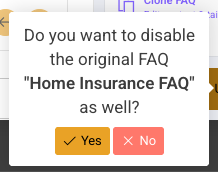
💡 Important Note: Cloning Quick Start FAQs as custom is only meant to be done to edit the content of the FAQs themselves. If you wish to change the FAQ visibility and placement, there is no need to clone the FAQ.
How do I make a Custom FAQ from scratch?
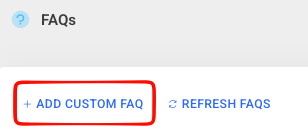
If you are a Forge Premium or Forge Legacy client, you’ll be able to click on the “+ ADD CUSTOM FAQ” button at the top of the FAQs page within the workspace. Once clicked, you’ll follow the prompts to create your own Custom FAQ.
From the pop-up screen for your new Custom FAQ, you’re able to toggle the FAQ visible and Automatic Placement, just as you were able to with Quick Start FAQs. Remember: an FAQ must be “Active” to be visible on any selected coverage pages or the Answer Hub page.
Once you’ve chosen which coverage pages your Custom FAQ should appear on, scroll down to the “Questions and Answers” box to start adding in your FAQ content. To the right of the content box, you’ll see arrows which allow you to add a question and answer pair above or below the one you’re currently working on. The red “X” allows you to delete the related question and answer pair.
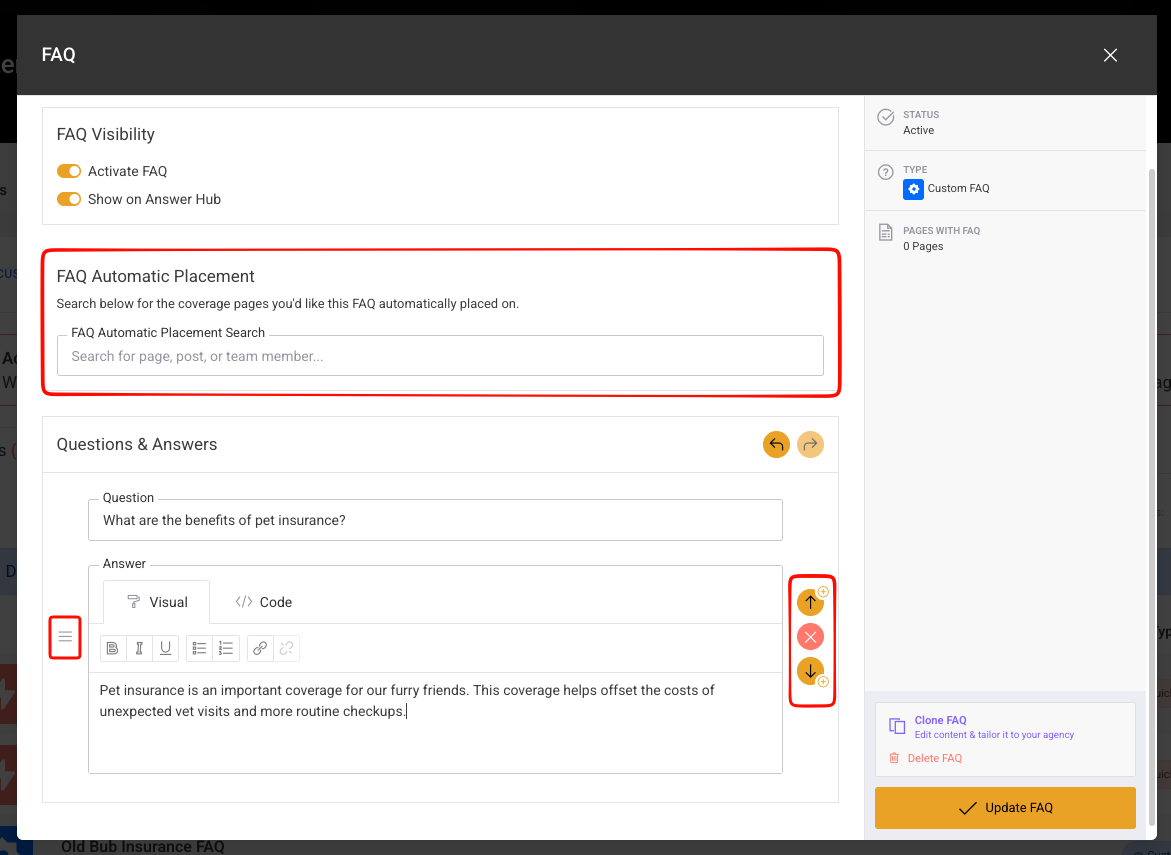
After you’ve added all of your question and answer pairs, you can order them by clicking and dragging on the three lines next to each pair. Sort these pairs in any order you like, and that is the order the pairs will appear on your website coverage pages and Answer Hub page.
Once you’re happy with your Custom FAQ content and settings, click the “Update FAQ” button on the bottom right of the pop-up screen. Visit the page or pages you’ve added the Custom FAQ to, to see it in action. You may need to clear your cache for the updates to appear on your website!
How does the Answer Hub page work?
The Answer Hub page is meant to be a repository of all the FAQs on your website. Its primary function is to help bolster AEO. We recommend displaying as many of your “Active” FAQs on this page as possible, to help AI search engines know your website has great content.