
Fuse’s AI tools help you build segments right from Sidekick chat so you can easily target the right clients with your emails. The Segment Builder allows you to create, preview, and customize segments based on your account data in your Fuse account list. To learn more about segments, check out this help article.
How Do I Open the Sidekick Segment Builder?
To build a Fuse segment, click on the Sidekick chat icon on the bottom right of your screen and send Sidekick a message letting it know you want to build a segment.
Sidekick is tuned to understand natural language, so don’t worry about being specific with your segment right away. Simply send, “I want to build a segment,” or something similar, to begin the conversation!
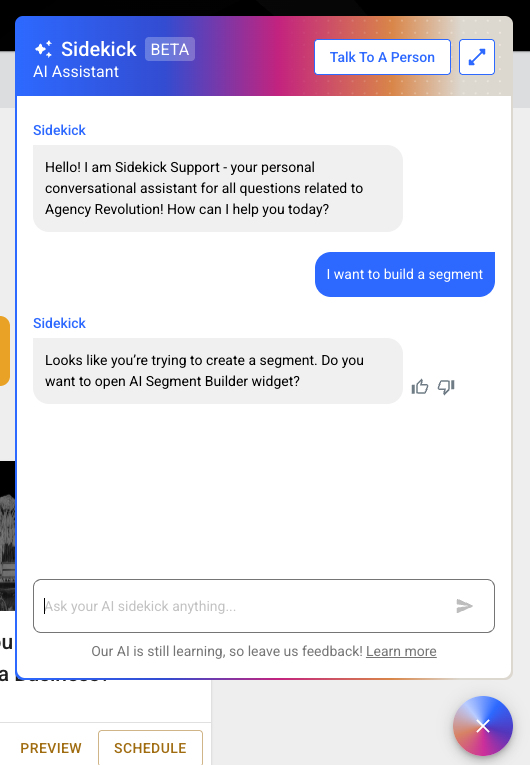
Sidekick will ask you to confirm you want to open the Segment Builder widget, and once you tell it, “Yes,” the Sidekick chat will expand, and your segment-building session will begin.
How Do I Build a Fuse Segment With Sidekick?
Once you’ve triggered the Segment Builder widget, go ahead and tell Sidekick what type of segment you’d like to build. Sidekick will provide a few handy suggestions, but you can write out your segment rules in plain language and workshop the segment right from the chat flow. To learn more about advanced segment rules, check out this help article.
Note: Sidekick builds segments based on the data within your Fuse Account list.
Here are some examples of segments you can ask Sidekick to build for you, and remember, your only limit for segments is based on your AMS data and your imagination.
- All active personal clients.
- Commercial clients in California.
- Inactive benefits clients.
- Clients with a home policy, but no auto policy.
Workshopping Your Segment
In the chat flow, Sidekick will display the rules it has chosen based on your directions. You can talk to Sidekick and edit these rules as much as you’d like before generating a preview to the left of the chat box.
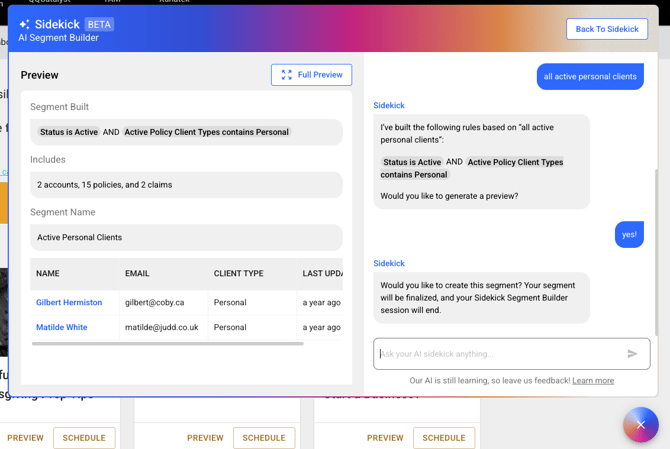
While Sidekick is thinking and creating your segment preview, you won’t be able to send additional messages. This helps Sidekick streamline your segment creation. Once the preview is ready, you can look through the account information, click into specific accounts, and continue editing your segment if something doesn’t look right.
Tip: Check a few of the accounts in the Segment Builder preview pane before generating your final segment to help ensure you’re targeting the right clients.
Generating Your Segment
Once you’re happy with the preview, you can ask Sidekick to generate your segment. You’ll have the option to go right to your segment, or stay on the page you’re working out of if you’d like to see your segment later.
Where Can I Find My Segments Generated by Sidekick?
All Sidekick-generated segments are located within the Accounts page, under the “Generated With Sidekick” banner. Clicking on the banner will expand it to show you the segments you’ve created using Fuse’s AI tool.
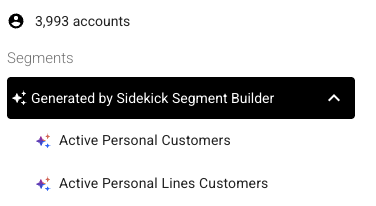
You can now use these segments in your custom Fuse campaigns to make your emails even more targeted. To learn more about building Fuse emails, check out this help center article.