How Do I Use Bulk Action Mode?
Bulk Action Mode allows you to efficiently manage multiple leads simultaneously within the Pipeline tool. To learn more about the Pipeline tool, check out this Help Center article.
How to Use Bulk Action Mode:
- Entering Bulk Action Mode:
- Navigate to the desired pipeline.
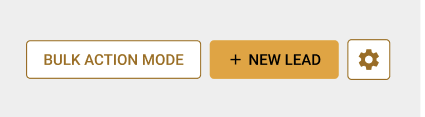
- Click the Bulk Action Mode button located next to the New Lead button. This will display checkboxes on each lead card and show an Actions dropdown menu in the navigation area.
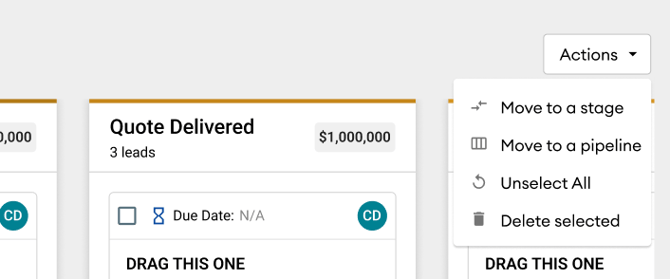
- Actions:
- Move to a Stage:
- Select the leads you want to move by checking the boxes.
- From the Actions dropdown menu, select Move to a stage.
- A modal window will guide you through the process. If no steps are in the stage, the message "There are No Steps Included For this stage" will be displayed.
- Move to a Pipeline:
- Select the leads you want to move.
- From the Actions dropdown menu, select Move to a pipeline.
- A modal window will guide you through the process. If no steps are in the stage, the same message will be displayed.
- Unselect All:
- From the Actions dropdown menu, select Unselect All to unselect all leads but remain in Bulk Action Mode.
- Delete Selected:
- Select the leads you want to delete.
- From the Actions dropdown menu, select Delete selected.
- A confirmation pop-up will appear. Click Delete Leads to permanently delete the selected leads or Never Mind to cancel.
- Move to a Stage:
- Bulk Action Mode Within a Stage Column:
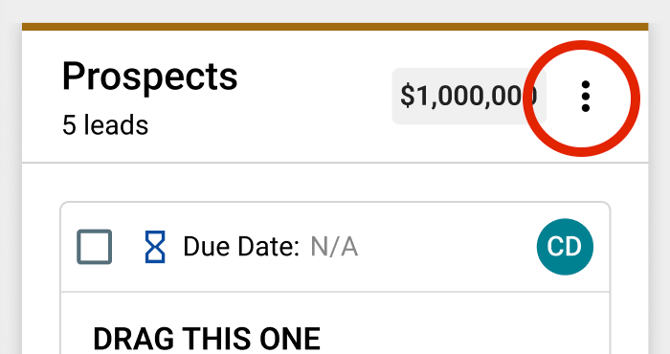
- When in Bulk Action Mode, a three-dot menu will appear at the top of each stage column.
- Click the three-dot menu and select “Select All” to select all leads within that stage.
- Then, you can use the Actions above.